Fake Twitch Chat Generator
Make a fake Twitch chat with colored usernames, mod, sub, and VIP badges, and every message written by you. Export it as the chat panel, a transparent overlay, a full stream screenshot, or a scrolling chat video where messages pop in one by one.
Channel
Start from a chat
Messages (12)
Paste a whole chat
How to Make a Fake Twitch Chat
- Start from a chat. Under “Start from a chat,” pick Hype, Gaming fail, Just Chatting, or Wholesome — or open “Paste a whole chat” and drop one
username: messageper line, then Replace or Append. - Tune Channel fields. Set Channel name and Viewers. On Stream Screen, also set Stream title and optionally upload your own stream frame (or keep the gradient background). Toggle Dark / Light and the “Welcome to the chat room!” notice when the layout is not Overlay.
- Edit each message. Change the username color swatch, rename the viewer, rewrite the line, and tap badge chips (Streamer, Mod, VIP, Sub, Verified, Prime) or Highlighted for a channel-points style message. Reorder with Move up / Move down or delete lines you do not need.
- Choose a layout. Chat Panel for the classic sidebar, Overlay for a transparent fake Twitch chat overlay, Stream Screen for a 16:9 stream with chat beside it.
- Export. Download PNG (or Copy). For motion, set Message speed (Slow / Normal / Fast), pick Key color on Overlay (green or blue — the tool marks “(best)”), then Export Scrolling Video. Free videos stop at 12 messages; Pro unlocks longer runs, HD, and 4K PNG.
Three Twitch Chat Layouts
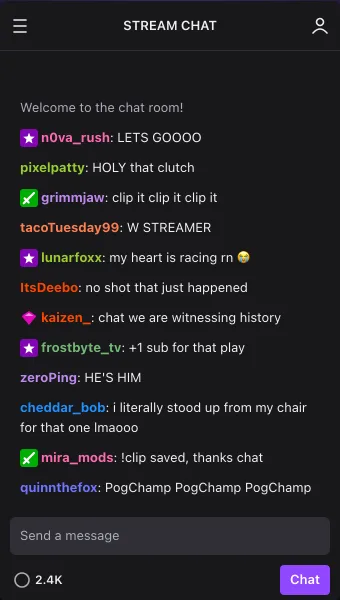
Chat Panel
The stream chat sidebar with header, message list, and the Send a message box, in dark or light theme. Good for screenshots, thumbnails, and memes.
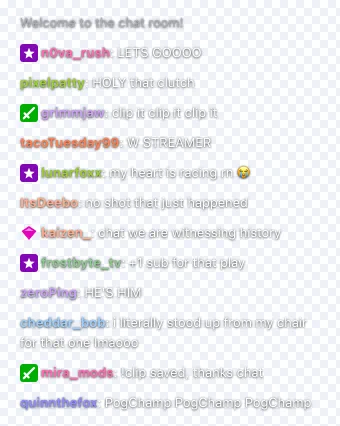
Chat Overlay
Just the messages — white text, colored names, soft shadow, transparent background. Layer it over gameplay or a facecam, or export it as a scrolling chroma-key video for OBS or CapCut.
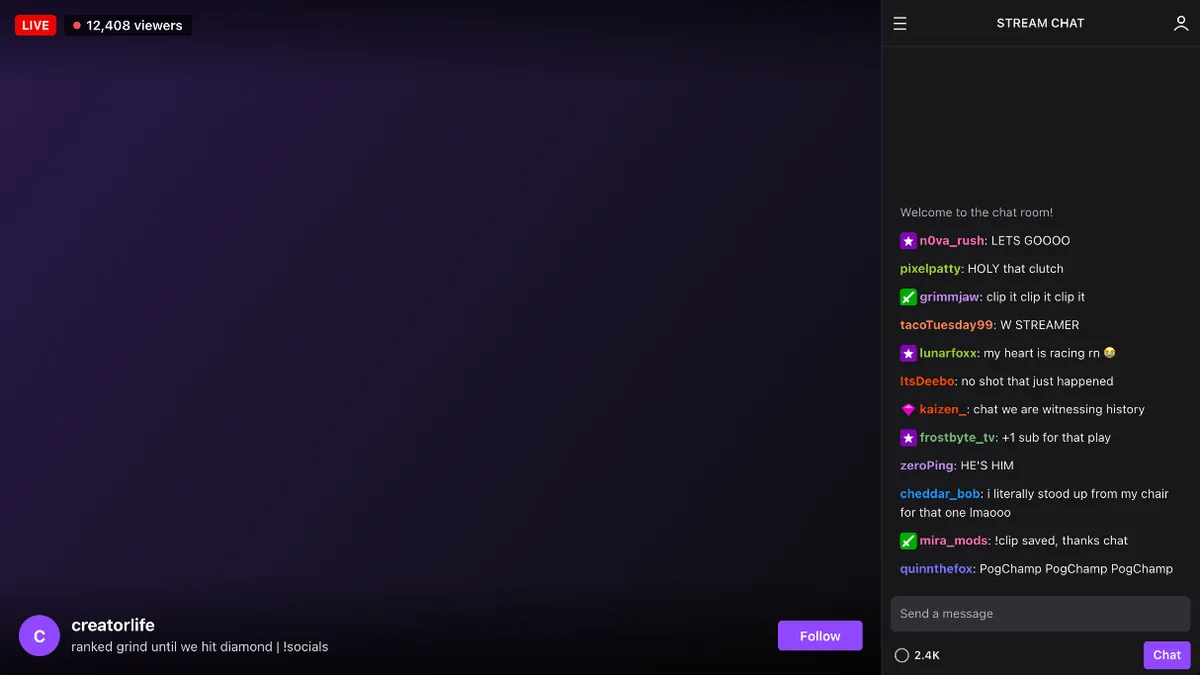
Stream Screen
A 16:9 stream view with LIVE badge, viewer count, channel name, title, and the chat beside it. Upload your own frame as the stream.
Twitch Chat Maker Use Cases (Paste These Scripts)
A Twitch chat maker is most useful when you need chat to hit on cue. Paste any of these into “Paste a whole chat,” hit Replace, then tweak badges. Keep lines short and leave one slightly off-topic — real chat is messy.
1. Clutch / hype skit
Use Overlay + Scrolling Video when the bit is “chat losing it” after a play.
n0va_rush: LETS GOOOO
pixelpatty: HOLY that clutch
grimmjaw: clip it clip it clip it
tacoTuesday99: W STREAMER
ItsDeebo: no shot that just happened
zeroPing: HE'S HIM
2. Gaming fail compilation
Toggle Mod on one calm line so the roast still feels like a real room.
benchwarmer22: bro walked straight into it
cozymira: KEKW
jungle_diffs: turn on your monitor
mod_marcus: chat be nice
okayjake: REPLAY REPLAY
tilted_tina: straight into the fail compilation
3. Just Chatting / VOD B-roll
Chat Panel or Stream Screen works when you need a still behind a talking-head cut.
maplesyrup_: hiii just got here what did i miss
quietquinn: the lighting looks so good today
dadjokesdaily: what are you eating?
sunny_mod: !schedule is in the panels below
tired_tom: lurking from work lol
plantdad: the cat in the background!!!
4. Overlay design / OBS scene test
Designers test a fake Twitch chat overlay before going live — export transparent PNG, drop it in OBS or CapCut, and check contrast against your gameplay.
overlay_qa: does this sit over the minimap
pixel_test: white text readable on dark HUD?
mod_check: badges still clear at 1080p
new_viewer: first time here hi
vip_note: love the new alert sounds
sub_fan: gifted a sub for the overlay glow-up
Export Settings
| Output | What you get | Plan |
|---|---|---|
| PNG | Still of Chat Panel, Overlay (transparent), or Stream Screen | Free |
| Transparent PNG | Overlay layout — drop into CapCut / Premiere / OBS | Free |
| Scrolling video ≤12 msgs | Messages pop in at Slow / Normal / Fast; small fakecomment.net watermark on free videos | Free |
| Chroma green / blue | Overlay scrolling video keyed for CapCut, OBS, Resolve | Free |
| 4K PNG & long HD video | Scale-4 PNG, HD video toggle, >12 messages, no watermark | Pro |
What a Fake Twitch Chat Is Used For
Streamer skits and YouTube edits often need a chat that reacts on cue — “chat” roasting a missed shot, spamming a meme, or asking the question that sets up the next bit. Recording real chat and waiting for the right line doesn't work, so editors build the chat they need and cut it in. A Twitch chat generator / Twitch chat simulator fills that gap without connecting to a live channel.
Designers use a fake stream chat to test overlay layouts before going live, and new streamers use it to preview how their scene will look with a busy chat. Thumbnail makers grab a single highlighted message. Keep lines short, mix hype with a few off-topic messages, and give one or two viewers a mod or sub badge — real chats are messy.
This is a mockup tool only: it does not join Twitch, scrape chat, or fake real engagement metrics. Use it for skits, tutorials, comps, and overlays — not to misrepresent audience activity.
More Live Chat Styles
Prefer a platform-agnostic fake stream chat first? Start on the Fake Live Chat Generator, then switch into Twitch style. Sibling live pages: Fake YouTube Live Chat, Fake Instagram Live, Fake Kick Chat, and the TikTok Live Comment Generator. For line ideas, the Fake Comment Writer drafts short chatty copy with AI.
Guides that pair well with overlays: How to add a fake comment overlay in CapCut and How to create fake comments for videos.
Fake Twitch Chat Generator FAQ
How do I make a fake Twitch chat?
Pick a starting chat (Hype, Gaming fail, Just Chatting, Wholesome) or paste your own lines as `username: message`. Edit any name, color, badge, or message, choose a layout, then download a PNG or export a scrolling video. Everything renders in your browser.
Can I make a scrolling fake Twitch chat video?
Yes. Export Scrolling Video records the chat with messages popping in one at a time, at slow, normal, or fast speed. The Chat Panel and Stream Screen layouts record as-is; the Overlay layout records on a green or blue chroma-key background so you can key it over your footage in CapCut, Premiere, DaVinci Resolve, or OBS. The tool suggests the key color that clashes least with your chat — mod badges and green names would vanish on green, so it switches to blue.
How do I put a fake Twitch chat overlay on my video?
Switch to the Overlay layout. Download PNG gives you a transparent image with white text and colored names — drop it on top of your video. For motion, export the scrolling video and use a chroma key effect on it.
Can I add mod, VIP, and subscriber badges?
Yes. Each message has toggles for Streamer, Mod, VIP, Sub, Verified, and Prime badges, plus a Highlighted style for channel-points messages. The badge icons are simplified look-alikes drawn by this tool, not Twitch's own artwork.
How are username colors picked?
New names get a color from Twitch's default name palette, based on the username — like viewers who never chose a color. Click the swatch next to any name to set a custom color. Very dark colors are lightened on the dark theme for readability, similar to how Twitch adjusts them.
Does it support Twitch emotes?
Emoji work anywhere in a message. Twitch and third-party emote images (Kappa, PogChamp, 7TV/BTTV) are not included — typing the emote name as text (KEKW, LUL) is how many chats read anyway.
Is this free, and is it affiliated with Twitch?
PNG downloads are free with no signup and no watermark. Free scrolling videos include up to 12 messages and a small fakecomment.net mark; Pro removes the mark and unlocks longer videos, HD, and 4K PNG. FakeComment is an independent mockup tool and is not affiliated with or endorsed by Twitch. Use it for skits, edits, tutorials, and overlay design — not to misrepresent real chat activity.
Is this a Twitch chat simulator for skits?
Yes. Creators use it as a Twitch chat simulator when a skit needs chat to react on cue — paste the script, toggle a Mod or Sub badge on one or two lines, export Overlay or Scrolling Video, and cut it into CapCut or Premiere. It never connects to Twitch and never posts to a real channel.